

Upflow → Blog → Accounting and Software
Integrating Upflow with NetSuite: Why, How, and Examples
Jean-Malo Le Dreff
|
October 29, 2026
Generate AI summary


Upflow connects to NetSuite through a native SuiteApp that syncs customers, invoices, credit memos and payments in real time, and writes payments and collection data back to NetSuite. Finance teams use it to run collections, online payments and AR analytics in Upflow, while NetSuite stays the system of record.
If you’ve reached the limits of NetSuite Dunning and overdue invoices keep piling up, it’s time for a more proactive approach to cash collection. Upflow integrates with NetSuite to give your team the tools to get paid faster and stay on top of accounts receivable, across every subsidiary.
As a Financial Relationship Management (FRM) platform, Upflow builds on NetSuite with smarter AR processes, better communication with customers, and visibility for every team that deals with them, without adding manual work.
What are the integration capabilities of Upflow with NetSuite?
Upflow connects to NetSuite through a native SuiteApp that syncs customers, contacts, invoices, credit memos and custom fields into Upflow, and writes payments, deposits and other records back to NetSuite. NetSuite stays your system of record, while Upflow runs collections, payments and AR analytics on top of it.
Upflow is a certified NetSuite SuiteCloud Developer Network (SDN) Partner. Unlike third-party connectors or middleware, the integration is embedded directly in NetSuite as a SuiteApp, available in the SuiteApp Marketplace, which means it’s officially supported and built to NetSuite’s technical standards.
- Data integrity at every sync: the integration starts with an initial full sync of your AR history, then runs incremental, real-time syncs that update only new or modified records. That keeps both systems aligned without manual exports.
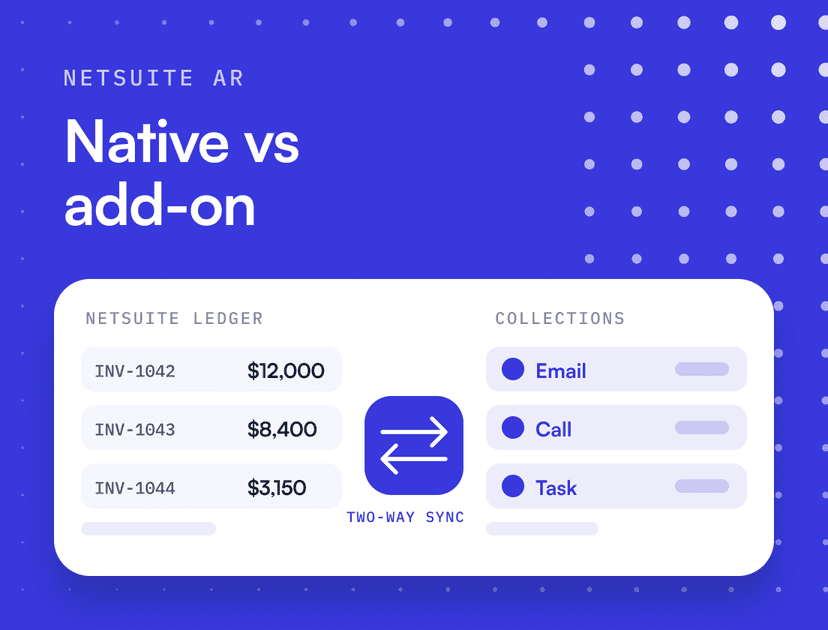
- Two-way integration: Upflow doesn’t just read from NetSuite. It writes payments, deposits, journal entries, classifications and late fee invoices back, and can export customer-level AR data to NetSuite customer records, so your team sees each account’s collection status without leaving NetSuite.
- Multi-entity support: Upflow works with NetSuite OneWorld accounts. Each subsidiary maps to its own Upflow organization, with an optional parent organization for consolidated reporting across entities.
- Highly configurable: you choose the GL accounts, payment methods and classifications (department, class and location) Upflow uses when it writes back, and can exclude specific customers from the sync. NetSuite custom fields sync into Upflow, where you can use them for segmentation, filters and workflow assignment.
- Optimized for performance: syncs are designed to respect your NetSuite concurrency limits, so Upflow doesn’t compete with your other integrations for API capacity.
- Highly secure: in addition to Upflow’s SOC 2 Type 2 certification, the SuiteApp goes through a yearly security and compliance review from NetSuite.
When it comes to financial data, using a certified integration matters. Unvetted connectors can expose sensitive AR data to errors, breaches and costly disruptions.
What does the Upflow NetSuite integration sync?
| Data | Direction | What it means for your team |
|---|---|---|
| Customers and contacts | NetSuite → Upflow | Reminders reach the right billing contacts, including across parent and child accounts |
| Invoices and credit memos | NetSuite → Upflow | Every open invoice, including those pending approval, is visible in Upflow as soon as it's created |
| Custom fields | NetSuite → Upflow | Your own NetSuite fields can drive segmentation and collection workflows |
| Payments, deposits and fees | Upflow → NetSuite | Online payments are recorded and reconciled in NetSuite automatically |
| Journal entries, classifications and late fees | Upflow → NetSuite | Your accounting structure stays intact, without manual entries |
| Customer AR status | Upflow → NetSuite | Overdue amounts and collection status show on the NetSuite customer record |
Upflow offers real-time synchronization, built for scale
Upflow’s real-time sync keeps your AR processes up to date, so your team never ends up chasing customers who have already paid.
Many AR tools connect to NetSuite in one of three ways, each with gaps:
- Manual SFTP transfers: CSV files uploaded to your AR system by hand. One misaligned column can corrupt data, overwrite records and trigger incorrect reminders.
- Daily data syncs: better, but still a day behind. Payments made during the day don’t show up until the next sync, so teams can chase settled invoices, and a failed sync leaves you waiting another full cycle.
- Custom API integrations: built once, but rarely maintained. Without dedicated support, they struggle to keep up with system changes, and data issues pile up over time.
Upflow avoids these problems by syncing incrementally and in real time, while staying within NetSuite’s API concurrency limits, so it scales with your business without slowing down your NetSuite instance.
What does Upflow add to NetSuite collections?
NetSuite handles invoicing, payments and the general ledger well. Collections is where most finance teams hit its limits: dunning letters follow fixed schedules, sales and customer success need NetSuite licenses to see payment status, and there’s no customer-facing portal built around AR. Upflow adds that collections layer on top of NetSuite, while NetSuite stays the system of record.
| NetSuite on its own | NetSuite with Upflow | |
|---|---|---|
| Payment reminders | Dunning letters based on days overdue | Multi-channel workflows (email, calls, letters), segmented by customer and sent from your team's own email addresses |
| Customer payments | Depends on your NetSuite modules and payment provider | A branded portal where customers see every open invoice and pay by card, ACH or SEPA, including Autopay |
| Cash application | Rules-based matching on exact amounts and references | AI-assisted matching, including partial and combined payments, with results written back to NetSuite |
| Team access | Every user needs a NetSuite license | Sales and customer success see invoices, payments and disputes in Upflow without a NetSuite license |
| AR analytics | Aging reports and saved searches | DSO, aging and collection performance dashboards, consolidated across subsidiaries |
For a closer look at what NetSuite covers out of the box, and the signs it’s time to add a dedicated tool, read our guide to NetSuite AR automation.
How does Upflow Payments work with NetSuite?
With Upflow Payments, customers pay directly from their Upflow portal, and each payment is recorded in NetSuite automatically. Your accounting stays up to date without anyone re-entering or matching payments by hand.
Here’s what happens when a customer pays:
- The customer pays online. From their portal, they can pay one or several invoices at once by card, ACH or SEPA, or set up Autopay so invoices are paid automatically on their due date.
- The payment is recorded in NetSuite right away. Upflow creates a customer payment in NetSuite and applies it to the right invoices.
- Deposits are reconciled automatically. Funds are paid out to your bank in daily batches, and each deposit is recorded in NetSuite against your bank GL account, along with processing fees and any surcharges.
- Failed payments are handled too. If a payment fails, for example a direct debit that bounces, it’s recorded in NetSuite automatically so balances stay accurate.
You choose the GL accounts, payment methods and classifications (department, class and location) Upflow uses, so payments fit your existing accounting structure. The full setup is in the help center’s guide to online payments sync for NetSuite.
You can also add a Pay via Upflow button to the invoice PDFs NetSuite sends, so customers can open their portal and pay straight from the invoice. If you’re also using Upflow’s automated cash application in NetSuite, bank transfers and checks are matched the same way, so all your payments land in NetSuite already applied.
Using Upflow with NetSuite and Salesforce
Many B2B finance teams run NetSuite for billing and accounting and Salesforce for customer relationships. Upflow connects to both, so collections use the best data from each.
NetSuite remains the source for invoices, credit memos and payments. When Salesforce is connected as well, Upflow uses Salesforce contacts and account owners, which take priority over the contacts in NetSuite. Reminders go to the people your account teams actually work with, and each account has a clear owner when a payment needs a personal follow-up.
The bigger benefit is visibility. Sales and customer success teams can see invoices, payment status and disputes for their accounts in Upflow, without a NetSuite license. Finance, sales and customer success then work from the same account view, which is the idea behind Financial Relationship Management: treating every conversation about money as part of the customer relationship.
Examples: Case studies & testimonials
The technical details matter, but the real test is what finance teams achieve once Upflow and NetSuite are connected. Here’s how two NetSuite users run collections with Upflow.
PlayPlay: Unlocking AR visibility & collaboration across teams
- Challenge: PlayPlay needed a scalable AR solution that worked directly with NetSuite, across three subsidiaries in France, Germany and the US, without buying extra NetSuite licenses for sales and customer success.
- Solution: Upflow’s native NetSuite integration synced invoices and payments in real time, and gave every team member access to AR data, regardless of NetSuite licenses.
- Result: PlayPlay automated 100% of its follow-up emails, saving an estimated 46 hours a month (based on January to June 2024), and kept DSO stable as invoice volume grew, without adding headcount. Camille also gets a consolidated view of all three subsidiaries in one place.


Camille Moreaud
Revenue Operations Manager @ PlayPlay
With Upflow and NetSuite working together, PlayPlay keeps finance, sales and customer success aligned on cash collection, as the full PlayPlay case study shows.
Walnut: Simplifying AR analysis, and reducing DSO by 50%, with Upflow & NetSuite
- Challenge: Walnut needed a more user-friendly way to analyze aging balances and collections data, without navigating NetSuite’s complex interface.
- Solution: Upflow’s real-time NetSuite integration pulled in financial data as it changed, giving the team accurate AR insights in an interface they actually wanted to use. The customer portal also moved more customers to online payments and Autopay.
- Result: Walnut cut DSO by 50% in just nine months, reduced the value of invoices reaching 90+ days overdue by 75% (June 2023 to August 2024), and increased receipts via Autopay 24x.


Ron Wolff Kochavi
Director of Finance @ Walnut
Upflow keeps Walnut’s AR data accurate and up to date, and gives the finance team a faster way to report on it, as the full Walnut case study explains.
Other NetSuite users, including Lattice, Botify and Feefo, have seen similar results with Upflow.
How to integrate Upflow with NetSuite
Connecting Upflow to NetSuite takes about 10 minutes. You prepare a few settings in NetSuite, then connect your account in Upflow. The first sync of your AR history can take several hours, but your team can start setting up workflows while it runs.
Before you start, make sure you have:
- Admin rights in NetSuite
- A NetSuite user profile set to English (US)
- A NetSuite OneWorld account
- An Upflow organization. If you don’t have one yet, create an account in Upflow
1. Enable the required NetSuite features. In NetSuite, go to Setup → Company → Enable Features. Under the SuiteCloud tab, turn on Client SuiteScript, Server SuiteScript, SOAP Web Services, REST Web Services and Token-Based Authentication. Under the Analytics tab, turn on SuiteAnalytics Workbook. Save after each tab.
2. Install the Upflow SuiteApp. Open the NetSuite SuiteApp Marketplace, search for “Upflow” and click Install. If installation fails, check that the features from step 1 are enabled.
3. Assign the Upflow Basic Role. Give the Upflow Basic Role to a NetSuite admin user whose language is set to English (US). Ideally, use a generic admin account dedicated to integrations, so the sync isn’t affected if someone leaves the company.
4. Create an access token. In NetSuite, create a New Access Token, choose Upflow SuiteApp as the application, then select the user and the Upflow Basic Role from step 3. Save it, and copy the Access Token ID and Access Token Secret straight away, since NetSuite only shows them once.
5. Connect NetSuite in Upflow. In Upflow, choose NetSuite as the tool to connect.
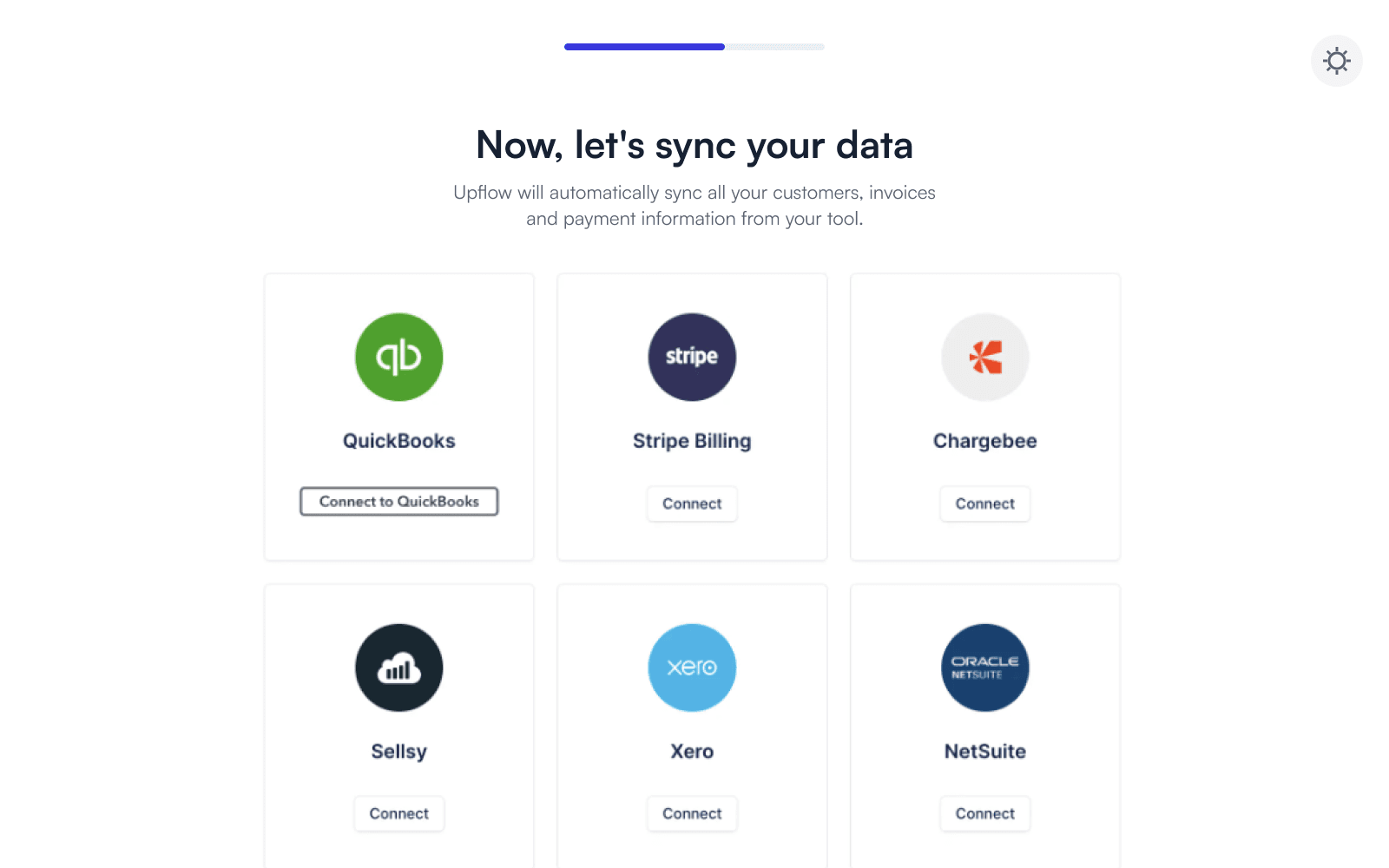
Enter your NetSuite account ID, the number before “.app.netsuite.com” in your NetSuite URL.

6. Select your subsidiaries. Choose which NetSuite subsidiaries to sync. Upflow works best with one subsidiary per Upflow organization, plus an optional parent organization for consolidated reporting across entities.

7. Let the first sync run. Upflow imports your customers, contacts, invoices and custom fields. The first sync can take several hours, depending on your data volume. In the meantime, you can invite teammates and set up your first collection workflow. Once it’s complete, your AR metrics are ready to explore, with no extra configuration needed.
The NetSuite connection guide in the Upflow help center walks through each step with screenshots and interactive demos.
How Upflow ensures a seamless integration process
Upflow is built to make the move to automated collections as smooth as possible for NetSuite teams, from the first connection to day-to-day use.
- Clear documentation: the Upflow help center covers every step of the NetSuite setup, from the required features to subsidiaries, custom fields and payment sync, with screenshots and interactive guides.
- Quick setup: connecting NetSuite takes about 10 minutes, and your team can start building workflows while the first sync runs in the background.
- Real-time data: once connected, invoices, payments and customer data stay in sync across both systems, so everyone works from the same numbers.
- Dedicated support: every Upflow customer gets a dedicated onboarding specialist and a dedicated customer success manager, who help with setup and configuration and are there afterwards to keep improving your collection workflows.
Ensuring minimal disruption during integration
Upflow is designed to keep your NetSuite operations running as normal while the integration is set up and afterwards:
- Built around NetSuite’s limits: after the initial sync, Upflow only syncs new or modified records, and it respects your NetSuite concurrency limits, so it doesn’t slow down your instance or compete with your other integrations.
- Changes you control: you decide which subsidiaries to sync, which customers to exclude, and which GL accounts, payment methods and classifications Upflow uses when it writes payments back to NetSuite.
- Sandbox testing: on request, you can test the integration in a sandbox environment before going live, to validate your configuration and check that everything works as expected.
With accurate, real-time data flowing between NetSuite and Upflow, your team can automate collections, cut manual AR work and reduce DSO, without the gaps and errors that come with outdated sync methods.
Ready to see it with your own data? Sign up for Upflow’s free Discover plan, connect your NetSuite instance, and get instant visibility into your key AR metrics, along with benchmarking insights for your industry.


Jean-Malo Le Dreff
Director of Product Management at Upflow
About the Author
Jean-Malo (JM) is the Director of Product Management at Upflow, where he leads the design and development of the platform’s core features. With a strong product mindset and a deep understanding of user needs, JM ensures Upflow’s tools deliver both functionality and delight to modern finance teams.
At Upflow, he works cross-functionally to translate customer feedback into intuitive, impactful features, especially around integrations, workflows, and platform scalability. His expertise lies in making complex financial processes simpler through thoughtful product design and seamless system connectivity.
JM contributes to Upflow’s blog with practical, product-driven content that helps users get the most value from the platform. He writes in-depth guides on product comparisons, software integrations, and the strategic advantages of using Upflow within a broader finance tech stack.
Summary

Shared
Frequently Asked Questions
Can’t find what you’re looking for?
Ask AI
Yes. Upflow is a certified NetSuite SuiteCloud Developer Network (SDN) partner, and its native SuiteApp is available in the NetSuite SuiteApp Marketplace. Because it’s an official SuiteApp rather than a third-party connector or custom API, the integration is supported by both Upflow and NetSuite and reviewed against NetSuite’s security standards.
Upflow imports customers, contacts, invoices (including drafts and invoices pending approval), credit memos and custom fields from NetSuite, and fetches invoice PDFs on demand so they’re always up to date. In the other direction, it writes payments, deposits, journal entries, classifications and late fee invoices back to NetSuite, and can export customer-level AR data such as overdue amounts and average payment delay to NetSuite customer records.
Yes. When a customer pays through the Upflow portal by card, ACH or SEPA, the payment is immediately recorded in NetSuite as a customer payment and applied to the right invoices. Deposits are then recorded against your bank GL account along with processing fees, and failed payments are recorded automatically, so no manual reconciliation is needed.
Yes. Upflow works with NetSuite OneWorld accounts and maps each NetSuite subsidiary to its own Upflow organization, so you can run separate collection workflows for each entity. You can also create a parent organization for consolidated reporting across all subsidiaries, using the same integration credentials.
Connecting NetSuite to Upflow takes about 10 minutes. You enable a few NetSuite features, install the SuiteApp, assign the Upflow Basic Role and create an access token. The first sync of your AR history can take several hours, but your team can start setting up workflows while it runs. After that, updates sync in real time.
Yes. NetSuite stays the source for invoices and payments, while Salesforce provides contacts and account owners, which take priority over the NetSuite contacts when both are connected. Sales and customer success teams can then see payment status and overdue invoices in Upflow without needing a NetSuite license.
Yes. Upflow’s collection workflows can take over from NetSuite’s dunning letters, with reminders that can be segmented by customer, multi-channel follow-ups, a branded payment portal and shared visibility for finance, sales and customer success. NetSuite remains the system of record for invoices and payments.
Yes. Upflow is SOC 2 Type 2 certified, and as an official SuiteApp partner it goes through a yearly security and compliance review by NetSuite. The integration connects through NetSuite’s token-based authentication and a dedicated Upflow Basic Role, so access is limited to what the integration needs.
Related articles